# Containerize Node.js web applications with Docker
In this article, we are going to look at how to containerize our NodeJs application and we will look into what benefits of containerizing our application.
In the first part, we will initialize a NodeJS application first then go through all the processes of connecting with the database and all. After that, we will look into some useful docker commands we need to know.
So let's get started.
## Create a NodeJS app
First of all, let's create a `package.json` file by running this command in your `app` directory. I am creating my project inside the app directory you are free to name whatever you want. Inside the app directory run the following command `npm init -y` this will automatically create `package.json` file with some text something similar to this.
```json
{
"name": "docker-nodejs",
"version": "1.0.0",
"description": "",
"main": "index.js",
"scripts": {
"test": "echo \"Error: no test specified\" && exit 1"
},
"keywords": [],
"author": "",
"license": "ISC"
}
```
After this, we will install a few packages such as `express` and `nodemon`. We will install nodemon as a dev dependency by running this command `npm install -D nodemon` and `express` as dependencies by this command `npm install express`. Now we are ready to write some code.
let's create `index.js` file and add the following code to it.
```js
const express = require('express');
const app = express();
app.use(express.json());
app.get('/', (req,res,next) => {
res.send(`Hello world
`)
})
const PORT = process.env.PORT || 3000;
app.listen(PORT, ()=> console.log(`app is running at ${PORT}`));
```
Here we have created our first route which will display `Hello world` on the screen when we will navigate to `localhost:3000/`. Before that, we need to make some changes in our `package.json` file as well.
```json
{
"name": "docker-nodejs",
"version": "1.0.0",
"description": "",
"main": "index.js",
"scripts": {
"test": "echo \"Error: no test specified\" && exit 1",
"dev":"nodemon index.js",
"start":"node index.js"
},
"keywords": [],
"author": "",
"license": "ISC"
}
```
So here we just added two scripts `npm run dev` when we run this command in our terminal and make changes to our code it will reflect immediately on the screen. And when we run `npm start` it will just display our current code and after every changes, we need to restart the server.
Now we have a basic setup ready. We are ready to introduce Docker now.
let create a docker file inside our app directory and add these codes to it.
```Dockerfile
FROM node:15
WORKDIR /app
COPY package.json .
RUN npm install
COPY . ./
ENV PORT 8080
EXPOSE $PORT
CMD ["node", "index.js"]
```
Let me explain every line of code here.
In the first line, we have added `FROM node:15` which means docker will pull the node from the docker hub with version 15. After that in the next line, we are defining our working directory this exact directory will be created inside our container.
Later docker will run this command `COPY package.json .` this command is going to copy `package.json` file to our working directory inside the container. Then `npm install` will install all the dependencies inside our container and will also create `node_modules` directory inside our container.
Now the `COPY . ./` command will copy all the files from our current directory to the container's working directory.
The next line `ENV PORT 8080` will set the environment variable inside our container which we can grab inside `index.js` by `process.env.PORT`.
`EXPOSE $PORT` this command is just giving us a port through which we can access our app in our local environment outside of the container. And then we have added a command `CMD ["node", "index.js"]` by default docker will run this command. Hope this all explanation makes sense to you.
Now for the performance optimization, we don't want to copy our host `node_modules` to our container. The container is going to have its own node_modules file remember we have added `npm install` inside our `Dockerfile`.
So to stop Docker to copy `node_modules` from the host to the container we will create a file called `.dockerignore` and add these lines.
```dockerfile
node_modules
.env
Dockerfile
.dockerignore
.git
.gitignore
docker-compose*
```
I have added some additional lines which we are going to need later.
After all these setups is ready to run our docker command.
```bash
docker build -t docker-nodejs .
```
Here I have added `-t` flag to add the name of our image.
After running the above command your terminal output will look something like this if you have done everything correctly.
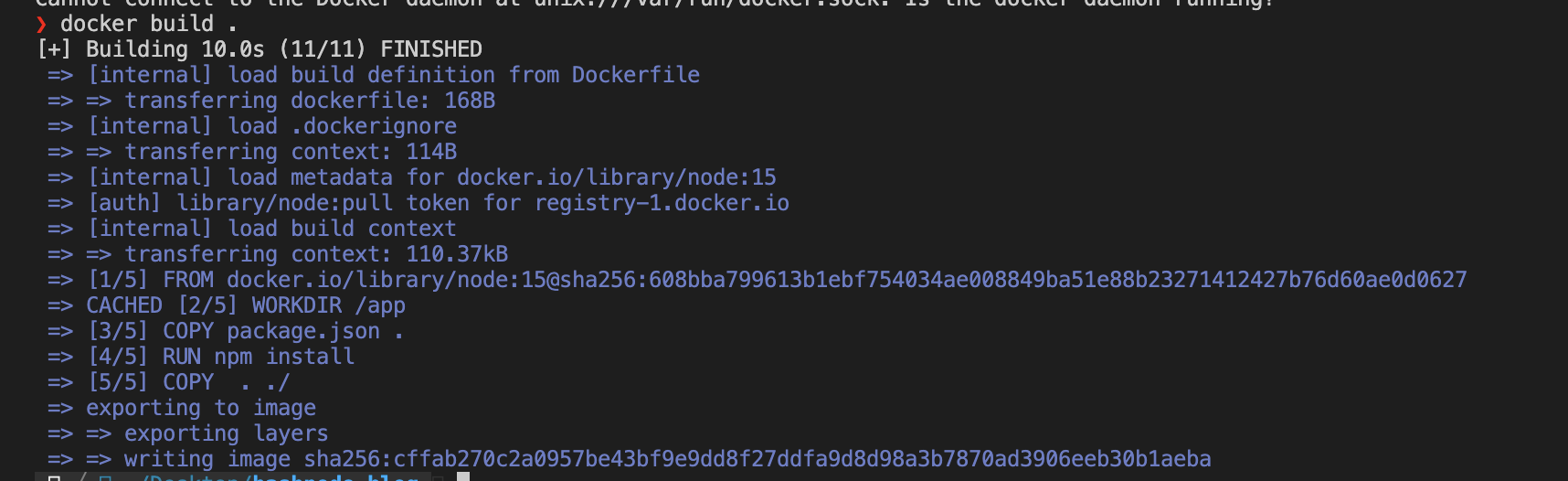
To check if the image is built properly you can run this command.
```bash
docker image ls
```
It will give out something like this.

Now our image is ready. Let's run our image by using this command.
```bash
docker run -p 3000:8080 -d --name node-app docker-nodejs
```
Here before running the container we have added `--name` flag to give a name to our container in which our `docker-nodejs` image will run. And I have also added `-d` flag which means to run this container in detach mode. I have also added `-p` flag which basically maps port 8080 from the container to port 3000 in the host container. This means when we run the app in our browser we need to visit `localhost:3000/`.
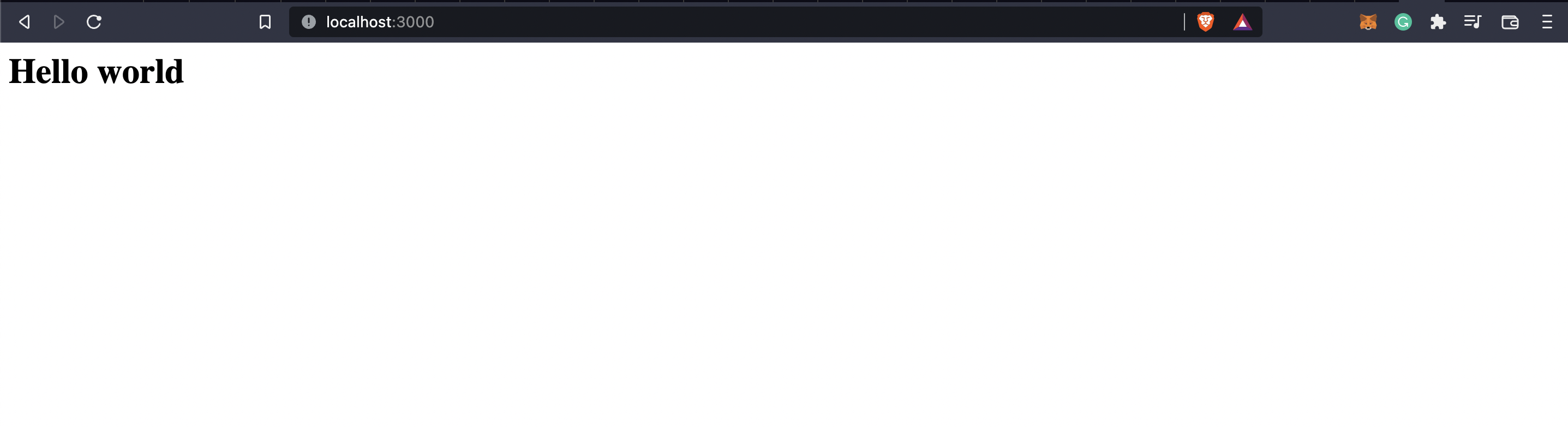
The result will look something like the above image in your browser.
Hope this article helps you understand a little bit of how to build an image and run inside a container. In the next post, we will discuss the `docker-compose` and try to go into more detail.
To support.
